Image File Formats Explained: JPEG, PNG, WebP, HEIC, SVG
By Bruce Shang
August 16, 2026· Updated on Sep 6, 2026· 6 min read
There are five image formats you'll actually meet in the wild: JPEG, PNG, WebP, HEIC, and SVG. They look similar at a glance and behave completely differently underneath. This guide explains each one in plain English, and points to a deeper article for each.
The quick overview
| Format | Compression | Transparency | Animation | Best for |
|---|---|---|---|---|
| JPEG/JPG | Lossy | No | No | Photos, web, print |
| PNG | Lossless | Yes | No | Graphics, screenshots, logos |
| WebP | Both | Yes | Yes | Modern web images |
| HEIC | Lossy (very efficient) | No | No | Apple photo storage |
| SVG | Vector (math) | Yes | Yes (CSS/SMIL) | Logos, icons, illustrations |
JPEG (JPG): the universal photo format
Lossy compression, universally supported, ideal for photos. The trade-off: re-saving a JPEG repeatedly degrades it. Best for photos on the web, in email, and in print.
PNG: the lossless workhorse
Lossless, supports transparency, terrible at compressing photos. Best for screenshots with text, UI graphics, and anything you'll edit repeatedly. Transparency makes it irreplaceable for logos on colored backgrounds.
WebP: the modern web format
Smaller than JPEG and PNG at the same quality, supports transparency and animation. Every modern browser supports it. Best for website images where every kilobyte matters.
HEIC: Apple's space saver
Default on iPhones, roughly half the size of JPEG at the same quality. The catch: compatibility. Windows needs an extension, many websites and apps reject it. Best kept inside Apple's ecosystem; convert to JPG before sharing. See HEIC vs JPG.
SVG: the image that isn't pixels
Not a raster at all, SVG is math (coordinates and curves), so it scales to any size without blur. Best for logos, icons, and illustrations. It can't represent photos, and you often need a PNG version for platforms that reject SVG. See SVG vs PNG.
How to choose: a simple decision flow
- Is it a photo? → JPEG (or WebP on the web)
- Is it a logo/icon/illustration? → SVG (vector) or PNG (raster)
- Is it a screenshot? → PNG
- Is it for a website? → WebP
- Is it an iPhone photo going somewhere outside Apple? → Convert HEIC to JPG
Converting between formats
The Image Converter on SlimImg handles JPEG, PNG, and WebP in either direction, in your browser, no uploads:
- WebP to JPG, for compatibility
- PNG to JPG, for smaller photos
- JPG to PNG, for editing workflows
- WebP vs PNG, the full comparison
For Apple photos, use the HEIC to JPG converter; for vectors, the SVG to PNG converter.
Beyond the five: the hidden properties
Formats get most of the attention, but two invisible properties decide how an image looks on the other side:
- Color profile (sRGB, Display P3, Adobe RGB), a photo shot in Display P3 but viewed as sRGB looks washed out unless the profile travels with the file. JPEG, PNG, and WebP all carry color profiles; keep them intact when you convert or colors shift silently.
- Metadata, EXIF (camera, GPS, timestamp) and IPTC (author, caption) ride inside JPEG, PNG, and WebP. Conversion usually preserves or strips them depending on the tool, which matters for privacy (GPS in a shared file) and for attribution (author credit in a stock submission).
Worth knowing even if you never touch them: these two fields are why "same image, different format" can still look different side by side.
A decision table for real situations
The five-step flow above covers the common cases. For the ones people ask about most:
| Situation | Format to use | Why |
|---|---|---|
| A photo for your website's hero | WebP | Smaller than JPEG at equal quality, loads faster |
| A logo on a transparent background | PNG (or SVG for web) | Both support transparency; PNG for email/docs |
| A photo to email a client | JPG | Universal compatibility, small at quality 80 |
| A screenshot for a bug report | PNG | Sharp text, small, no artifacts |
| An iPhone photo for a print shop | JPG | Print workflows expect raster JPG/PDF; HEIC is often rejected |
| An illustration for a presentation | SVG (export PNG for PowerPoint) | Crisp at any size; PowerPoint needs PNG/EMF |
What's next: AVIF
The format landscape isn't static. AVIF, the image format of the AV1 video codec, is already supported in every modern browser and routinely beats WebP by another 20–50% on file size. It supports transparency, HDR, and animation, and it's the direction the web is heading.
The practical advice today: you don't need to switch everything to AVIF this week. But if you're converting a library or building a new image pipeline, it's worth knowing it exists and how it compares to WebP, see AVIF vs WebP for a head-to-head.
The order that avoids degradation
Conversions are not all equal. Follow this order and you never recompress more than necessary:
- Always convert from the original (camera file, design export), never from an already-compressed copy
- Convert to a lossless intermediate (PNG) before heavy editing
- Export the delivery format last (JPG/WebP at the target quality)
- Archive the original so the next conversion starts clean
The Image Converter handles the JPEG/PNG/WebP legs of that chain in your browser, and the HEIC to JPG converter and SVG to PNG converter cover the two common out-of-chain cases.
How to check what you're actually holding
Files lie less than you'd think, but extensions can be misleading after conversions and renames. Two ways to confirm a format:
- macOS: select the file → File → Get Info. The "Kind" line names the real format.
- Windows: open the folder, switch to Details view, and add the "Type" column, or open the file in an image viewer that reports the codec.
It matters more than it sounds: converting a file whose extension says JPG but whose content is actually PNG produces confusing results, and the error is rarely obvious. Checking the real type before you convert avoids the "why is this still huge?" moment.
A 30-second format decision
When a file arrives in the wrong format, work through two questions instead of guessing: what kind of image is it, and where is it going? The flow below covers the choices that come up most often.
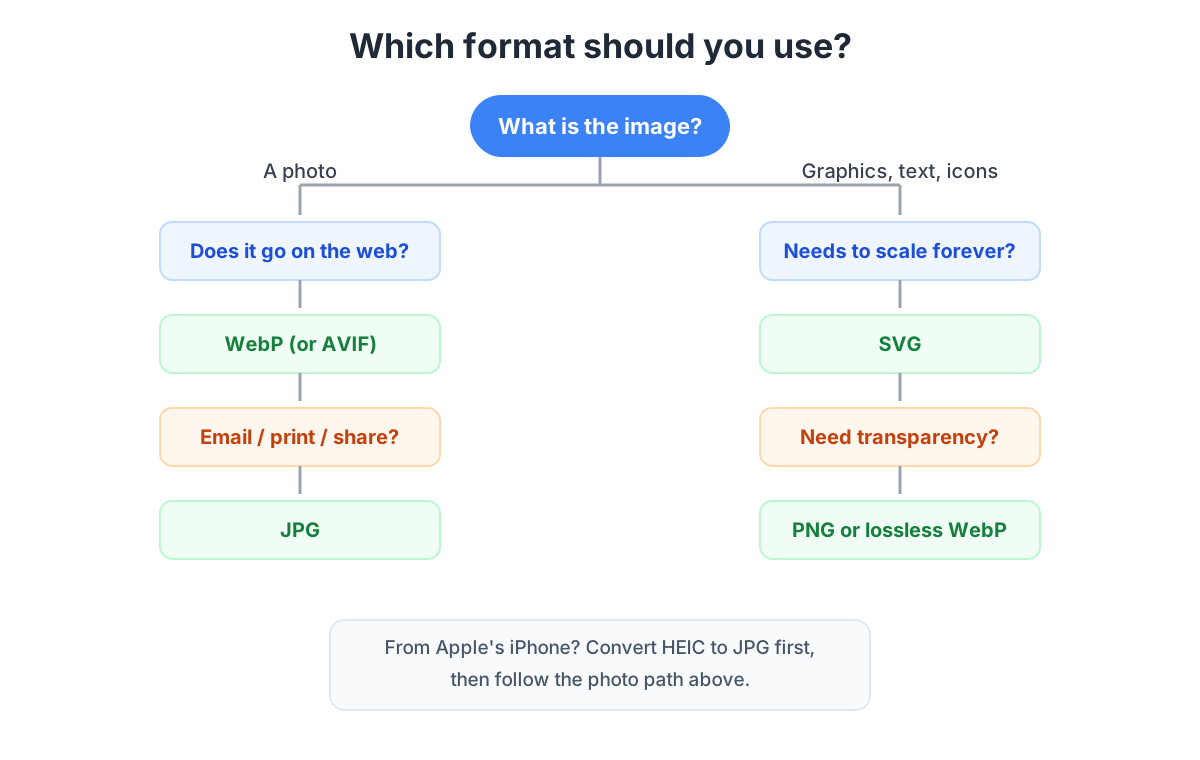
The diagram leaves one case for a separate step: files that come from an iPhone are usually HEIC, and they need to become JPG before they follow the photo path. That conversion is covered in the HEIC to JPG guide.
Quick format questions
Which format has the best quality?
Lossless formats (PNG, SVG) preserve everything, but "best" depends on the image: photos look great as high-quality JPEG or WebP, while text and graphics need lossless formats to stay sharp.
Which format is smallest?
For photos: WebP. For simple graphics: SVG. For everything else, it depends on the content, that's why conversion guides always mention file size trade-offs.
Do I need to understand formats as a beginner?
Just learn one rule: photos → JPEG/WebP, graphics → PNG/SVG, Apple sharing → convert HEIC to JPG. Everything else is refinement.
What should I do with my image once the format is right?
Then resize and compress it; the compression guide shows how to keep quality while shrinking files.
Can one tool handle all these conversions?
Yes, the Image Converter converts between JPEG, PNG, and WebP in your browser, and the HEIC and SVG converters sit right alongside it on SlimImg.
The one-line cheat sheet
Photos go to JPEG or WebP, graphics go to PNG, logos and icons go to SVG, and anything Apple sends elsewhere goes through HEIC to JPG first. When the extension and the actual format disagree, check before converting; when they agree, the Image Converter handles the rest in the browser.
Try the Image Converter
Free, private, and no account needed — your files never leave your browser.
Open Image Converter →